Drivers
Drivers (operators) are the people or vehicles that fulfill transfer bookings. You add them under Team > Drivers so they can be assigned to bookings and, if they have a driver account, see their assignments in the driver app.
Giving a driver a login (Driver role)
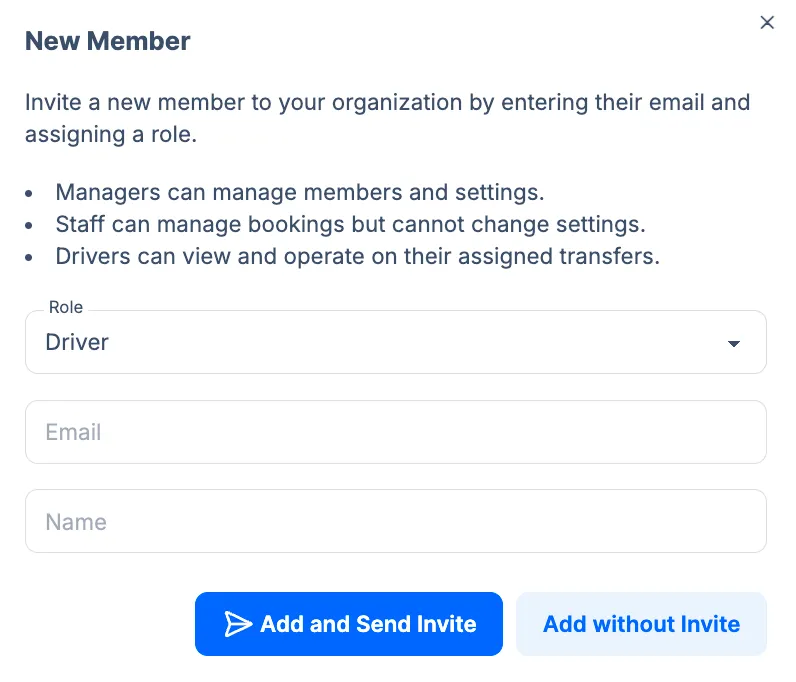
Section titled “Giving a driver a login (Driver role)”To let a driver log in to the driver app (view assignments, mark Picked Up/Completed), invite them as a Member with the Driver role. In Team > Members, click New Member, choose Role: Driver, enter their Email and Name, then Add and Send Invite or Add without Invite. The UI describes the Driver role: “Drivers can view and operate on their assigned transfers.”
Adding a driver profile
Section titled “Adding a driver profile”In Team > Drivers you create the driver profile (used for assignment) with:
- Name (and optionally photo)
- Phone number (for contact and assignment notifications)
- Commission (e.g. percentage or fixed amount per booking)
Commission is calculated per booking (e.g. a percentage of the transfer total or a fixed amount per job). Once saved, the driver appears in the operator dropdown on Booking Details. You can assign them to transfers and they will receive notifications if configured. Driver availability (when a driver is available for assignments) may be configurable per driver if your plan supports it. Performance tracking (e.g. completed transfers, revenue per driver) may appear in Reports or on the driver profile depending on your plan.
Driver accounts (login)
Section titled “Driver accounts (login)”After creating the driver profile above, use Team > Members and add them with the Driver role (see Members). Link that member to this driver profile so the same person appears in Team > Drivers (for assignment) and in the driver app (for status updates).
Related pages
Section titled “Related pages”- Members - Invite users and set roles
- Assigning Operators - Assign a driver to a booking
- Driver Experience - What drivers see when they log in
- Permissions - Hide price or commission from drivers