Payments
Ce contenu n’est pas encore disponible dans votre langue.
Introduction
Section titled “Introduction”TransferVista enables easy and flexible tracking of payment records for your bookings. Payments can be made online, partially as deposits, or fully on arrival to the driver.
A booking is considered fully paid when the sum of all payment transactions equals the total booking amount. If payments don’t cover the full amount, the remaining balance is marked as “Pay on Arrival” which means the customer will pay the driver directly (with cash, card, or other methods).
Payment Methods
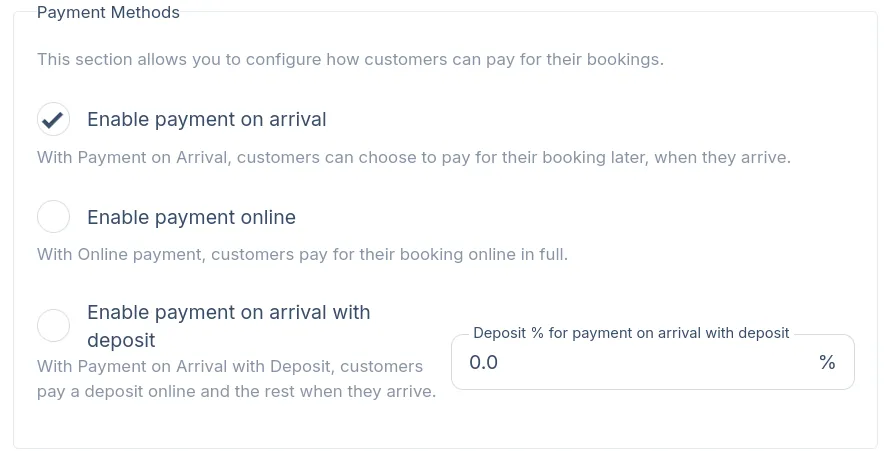
Section titled “Payment Methods”TransferVista supports three payment methods that you can enable in Settings > Bookings.
| Method | Description |
|---|---|
| Pay on Arrival | Customer pays the full amount when they arrive (to the driver). No online payment required. |
| Online Payment | Customer pays the full amount online during booking. |
| Pay on Arrival with Deposit | Customer pays a percentage upfront online, with the remaining balance due on arrival. |
Configuring Payment Methods
Section titled “Configuring Payment Methods”- Go to Settings in the sidebar
- Click the Bookings tab
- Scroll to the Payment Methods section
- Enable the methods you want to offer:
- Check Enable payment on arrival for cash/card payments to drivers
- Check Enable payment online for full online payments
- Check Enable payment on arrival with deposit for partial deposits
- If using deposits, set the Deposit % (e.g., 20% means customers pay 20% online, 80% on arrival)
- Click Save
Understanding Payment Status
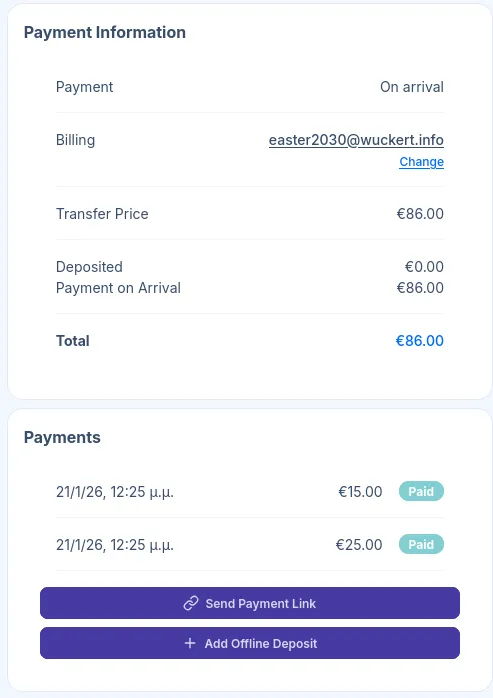
Section titled “Understanding Payment Status”Each booking displays payment information in two sections on the booking details page: Payment Information and Payments.
| Field | Description |
|---|---|
| Payment | The payment method selected (e.g., “On arrival”, “Online”, “Deposit”) |
| Billing | The customer’s billing email, linked to their customer record |
| Transfer Price | The base price for the transfer |
| Deposited | Amount already paid online |
| Payment on Arrival | Remaining amount due on arrival |
| Total | Full booking amount |
Managing Payments
Section titled “Managing Payments”TransferVista provides very flexible tools to handle various payment scenarios. It is also important to keep payment records accurate for reporting and driver instructions.
Online Payments
Section titled “Online Payments”When a customer pays online during booking, the payment is automatically recorded and appears in the Payments section. The “Pay on Arrival” amounts are updated accordingly, and the booking is considered fully paid.
Send Payment Link
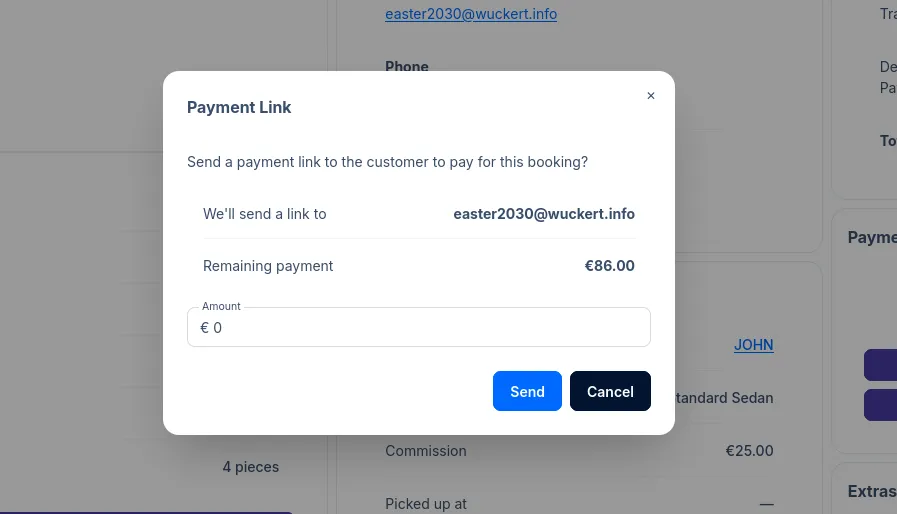
Section titled “Send Payment Link”Use this to request online payment from a customer after the booking is created.
- Open the booking details page
- Click Send Payment Link in the Payments section
- Enter the amount to request (can be partial or full remaining balance)
- Click Send
Add Offline Deposit
Section titled “Add Offline Deposit”Use this to record payments received outside of the online system (e.g., bank transfers, cash deposits, checks).
- Open the booking details page
- Click Add Offline Deposit in the Payments section
- Enter the amount received
- Click Add
The payment is immediately recorded and the “Deposited” and “Payment on Arrival” amounts update accordingly.
Common Payment Workflows
Section titled “Common Payment Workflows”Full Online Payment
Section titled “Full Online Payment”- Customer books and pays online during checkout
- Booking status shows “Deposited: €X” (full amount)
- “Payment on Arrival” shows €0.00
- Driver doesn’t need to collect any payment
Deposit with Balance on Arrival
Section titled “Deposit with Balance on Arrival”- Customer pays deposit (e.g., 20%) during booking
- Booking shows “Deposited: €X” (deposit amount)
- “Payment on Arrival” shows remaining balance
- Driver collects the remaining amount on arrival
Pay on Arrival Only
Section titled “Pay on Arrival Only”- Customer books without online payment
- “Deposited” shows €0.00
- “Payment on Arrival” shows full amount
- Driver collects full payment on arrival
Manual Payment Collection
Section titled “Manual Payment Collection”- Customer makes a bank transfer
- Staff records it using Add Offline Deposit
- Payment amounts update automatically
- Driver sees reduced (or zero) amount to collect
Related Pages
Section titled “Related Pages”- Booking Details - Full booking management
- Integrations - Connect Stripe for online payments