Status Workflow
Esta página aún no está disponible en tu idioma.
Every transfer booking in TransferVista moves through a clear status workflow. Understanding each status and when it changes helps you and your drivers keep operations smooth and customers informed.
Visual Status Progress
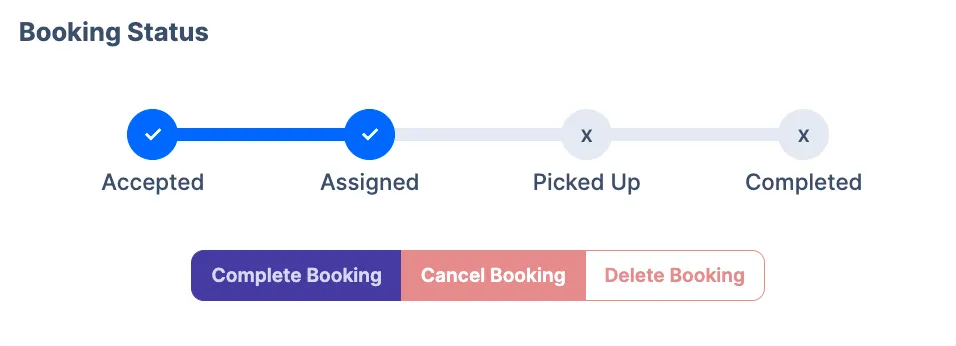
Section titled “Visual Status Progress”On the Booking Details page, the Booking Status section displays a visual progress bar showing the booking’s current position in the workflow:
The progress bar shows four main stages:
- Accepted - Booking has been received and confirmed
- Assigned - A driver or operator has been allocated
- Picked Up - Customer has been collected
- Completed - Journey is finished
Visual indicators:
- ✓ Blue checkmark - Stage has been completed
- ✗ Grey X mark - Stage is pending (not yet reached)
- Blue connecting bar - Transition between completed stages
- Grey connecting bar - Transition to pending stages
The progress bar updates automatically as the booking moves through each status, giving you a quick visual reference of where the booking is in its lifecycle.
Status definitions
Section titled “Status definitions”| Status | Description |
|---|---|
| Pending Payment | Awaiting customer payment (e.g. deposit or full online payment). Applies when online payment or deposit is enabled and not yet completed. |
| Accepted | Booking has been received and confirmed. Ready for assignment to a driver. |
| Assigned | A driver or operator has been allocated to the booking. The driver can see it in their assignments. |
| Picked up | Customer has been collected. The transfer is in progress. |
| Completed | Journey is finished. Payment on arrival (if any) has been collected. |
| Cancelled | Booking has been voided. No transfer will take place. |
You can filter bookings by these statuses on the Bookings page.
How status changes
Section titled “How status changes”Status changes can happen automatically or manually:
- Automatic: Some statuses are set by the system (e.g. Accepted when a booking is created, Pending Payment when online payment is required).
- Manual: You or your drivers can change status using the action buttons on the Booking Details page. Quick actions include Complete Booking or Cancel Booking.
Drivers typically mark Picked up when they collect the customer and Completed when the journey ends.
Status Transition Flow
Section titled “Status Transition Flow”The typical status progression follows this sequence:
Pending Payment → Accepted → Assigned → Picked Up → Completed
However, Cancelled can occur at any point before Completed, ending the workflow.
Only valid transitions are offered (e.g. you cannot mark a booking Completed without it first being Picked up).
Notifications
Section titled “Notifications”When status changes, TransferVista can send email notifications to customers, managers, and drivers (e.g. “Driver assigned”, “Transfer completed”). You can turn these on or off in Communications > Email Templates.
Related pages
Section titled “Related pages”- Bookings Overview - Filter and list bookings by status
- Booking Details - Change status using action buttons
- Assigning Operators - Assign a driver (Accepted → Assigned)