Integrations
Ce contenu n’est pas encore disponible dans votre langue.
To access Integrations, go to Settings in the sidebar and select Integrations.
Stripe
Section titled “Stripe”Connect your Stripe account to accept online payments from customers.
| Field | Description |
|---|---|
| Stripe Publishable Key | Your Stripe publishable key (starts with pk_). Found in your Stripe Dashboard under Developers > API keys. |
| Stripe Secret/Restricted Key | Your Stripe secret key (starts with sk_) or restricted key (starts with rk_) with payment permissions. Found in your Stripe Dashboard under Developers > API keys. |
Setting Up Stripe
Section titled “Setting Up Stripe”-
Create a Stripe account if you don’t have one
-
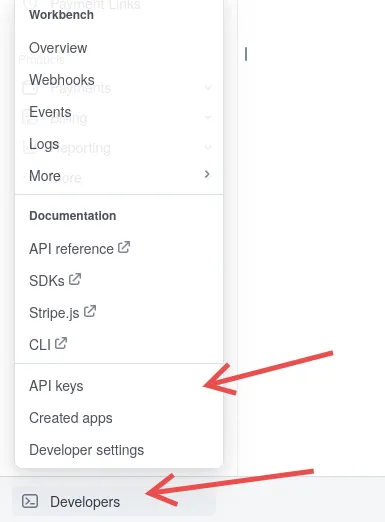
In your Stripe Dashboard, go to Developers > API keys
-
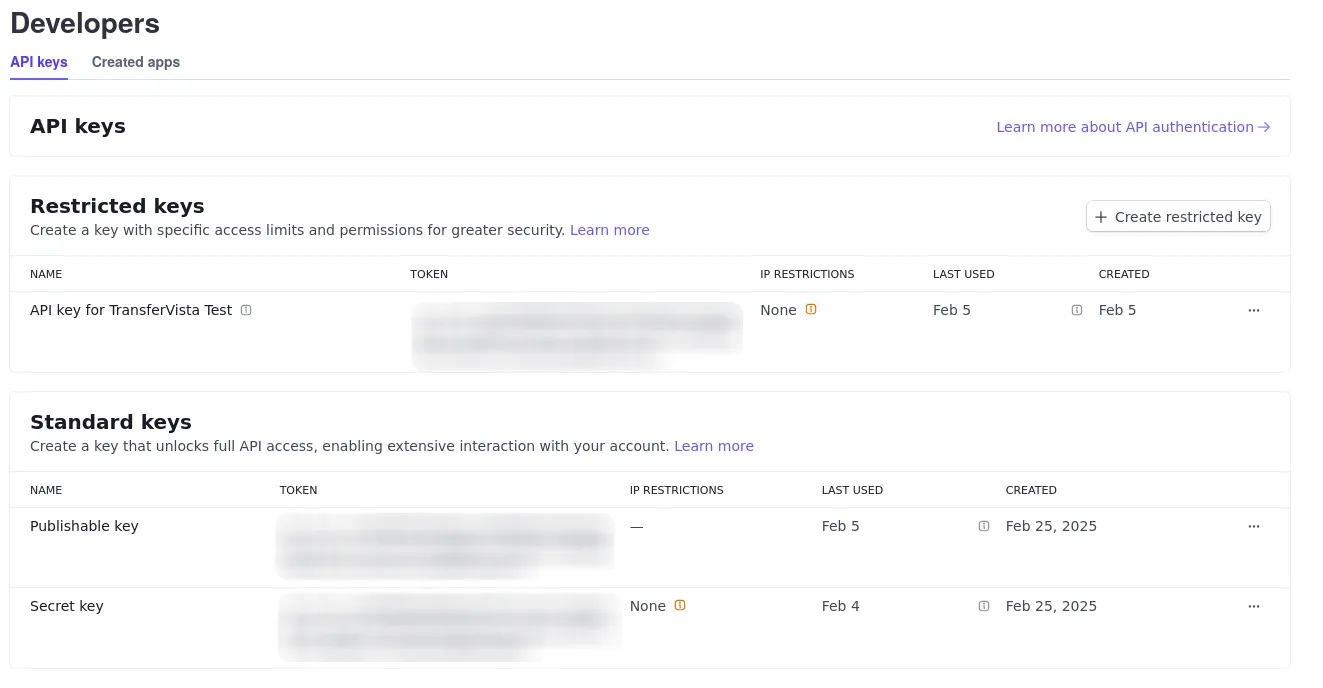
Create a Restricted key
-
Click Create restricted key
-
When asked “How will you use this API key?”, select “Providing this key to another website”. Press continue.
-
Name the key (e.g. “TransferVista”) and provide the following URL:
https://reserve-transfer.com -
Click Create restricted key. A pop-up will show your restricted key (starts with
rk_). Copy this key and paste it to the Stripe Secret key field in TransferVista.
-
-
Find your publishable key (starts with
pk_) under “Standard keys” and copy it to the Stripe Publishable key field in TransferVista. -
Click Save
Google Calendar
Section titled “Google Calendar”Sync your bookings to Google Calendar to keep track of upcoming transfers.
When connected, TransferVista automatically creates calendar events for new bookings, making it easy to view your schedule alongside other appointments.
Connecting Google Calendar
Section titled “Connecting Google Calendar”-
Click Sign in with Google
-
Select your Google account
-
Grant TransferVista permission to access your calendar
-
Once connected, bookings will sync to your Google Calendar
Google Analytics
Section titled “Google Analytics”Track booking form visitors and conversions with Google Analytics.
| Field | Description |
|---|---|
| GA Measurement ID | Your Google Analytics 4 Measurement ID (format: G-XXXXXXXXXX). Found in your Google Analytics property settings. |
Setting Up Google Analytics
Section titled “Setting Up Google Analytics”-
Create a Google Analytics 4 property if you don’t have one
-
Go to Admin > Data Streams and select your web stream
-
Copy your Measurement ID (starts with
G-) -
Paste it into the GA Measurement ID field in TransferVista
-
Click Save
Google Ads
Section titled “Google Ads”Track conversions from your Google Ads campaigns to measure advertising effectiveness.
| Field | Description |
|---|---|
| Conversion ID | Your Google Ads conversion ID (format: AW-XXXXXXXXX). Found in your Google Ads account under Tools > Conversions. |
| Conversion Label | The conversion label for the specific action you want to track. Created when you set up a conversion action in Google Ads. |
Setting Up Google Ads Conversion Tracking
Section titled “Setting Up Google Ads Conversion Tracking”-
In your Google Ads account, go to Tools & Settings > Conversions
-
Create a new conversion action for website bookings
-
Copy the Conversion ID and Conversion Label from the tag setup
-
Paste both values into TransferVista
-
Click Save
After making changes to any integration, click Save in the top right corner to apply your updates.