Extras
Ce contenu n’est pas encore disponible dans votre langue.
To access Extras, go to Catalog in the sidebar and select the Extras tab.
Extras are optional add-on services that customers can include with their transfer booking. They allow you to offer additional services and generate extra revenue from each booking.
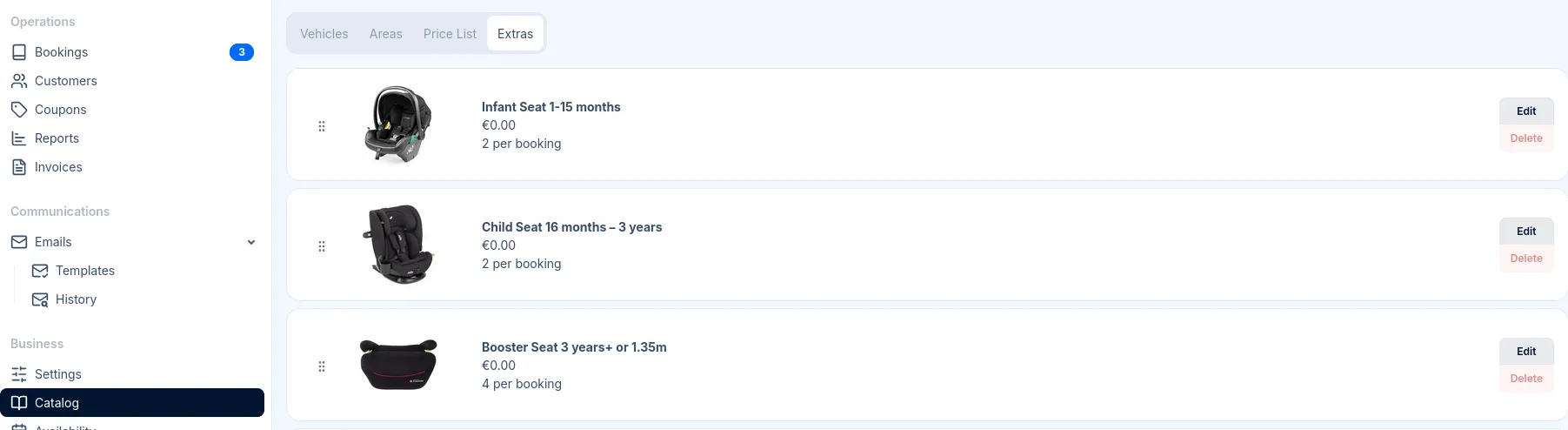
Adding an Extra
Section titled “Adding an Extra”-
Click New Extra in the top right corner (or Add Extra if you have no extras yet)
-
Fill in the extra details (see Reference below) and click Save
The extra will appear in your list and become available for customers to select on the booking form.
Deleting an Extra
Section titled “Deleting an Extra”-
Find the extra in the list
-
Click Delete and confirm
Reference
Section titled “Reference”| Field | Description |
|---|---|
| Name | The name of the extra as displayed to customers (e.g., “Child Seat”, “Meet & Greet”). Keep it short and clear. |
| Price | The cost of this extra, added to the booking total. Enter the amount in your configured currency (e.g., ”€ 10”). |
| Max per booking | The maximum quantity a customer can add per booking. Set to 1 for single items (like meet & greet), or higher for items customers might need multiples of (like child seats). |
| Image | An optional image representing the extra. Drag and drop an image or click to browse. Maximum file size: 8MB. |
How Extras Appear to Customers
Section titled “How Extras Appear to Customers”When customers complete a booking on your booking form, they see a list of available extras after selecting their vehicle. Each extra displays the name, price, and a quantity selector.
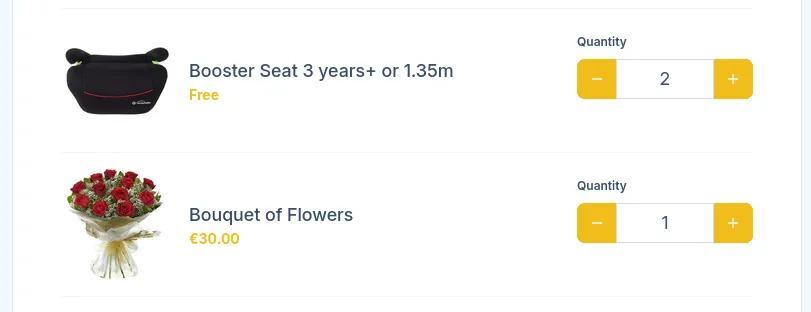
Customers can add extras to their booking, and the total price updates automatically.
Extras in Bookings
Section titled “Extras in Bookings”When a customer adds extras to their booking:
- The extras are listed in the booking details
- The extra costs are added to the booking total
- Drivers can see which extras are included in their assignment
Common Extra Examples
Section titled “Common Extra Examples”- Child seat - Baby or toddler car seats
- Booster seat - For older children
- Meet & greet - Driver meets passenger with a name sign
- Champagne - Bottle of champagne for celebrations
Images
Section titled “Images”Adding images to extras helps customers understand what they’re selecting:
- Use clear, simple images that represent the item
- Consistent image styles create a professional appearance
- Images are optional but recommended for visual extras like child seats
- Images appear as thumbnails next to their names, with a light or white background