Price Lists
Ce contenu n’est pas encore disponible dans votre langue.
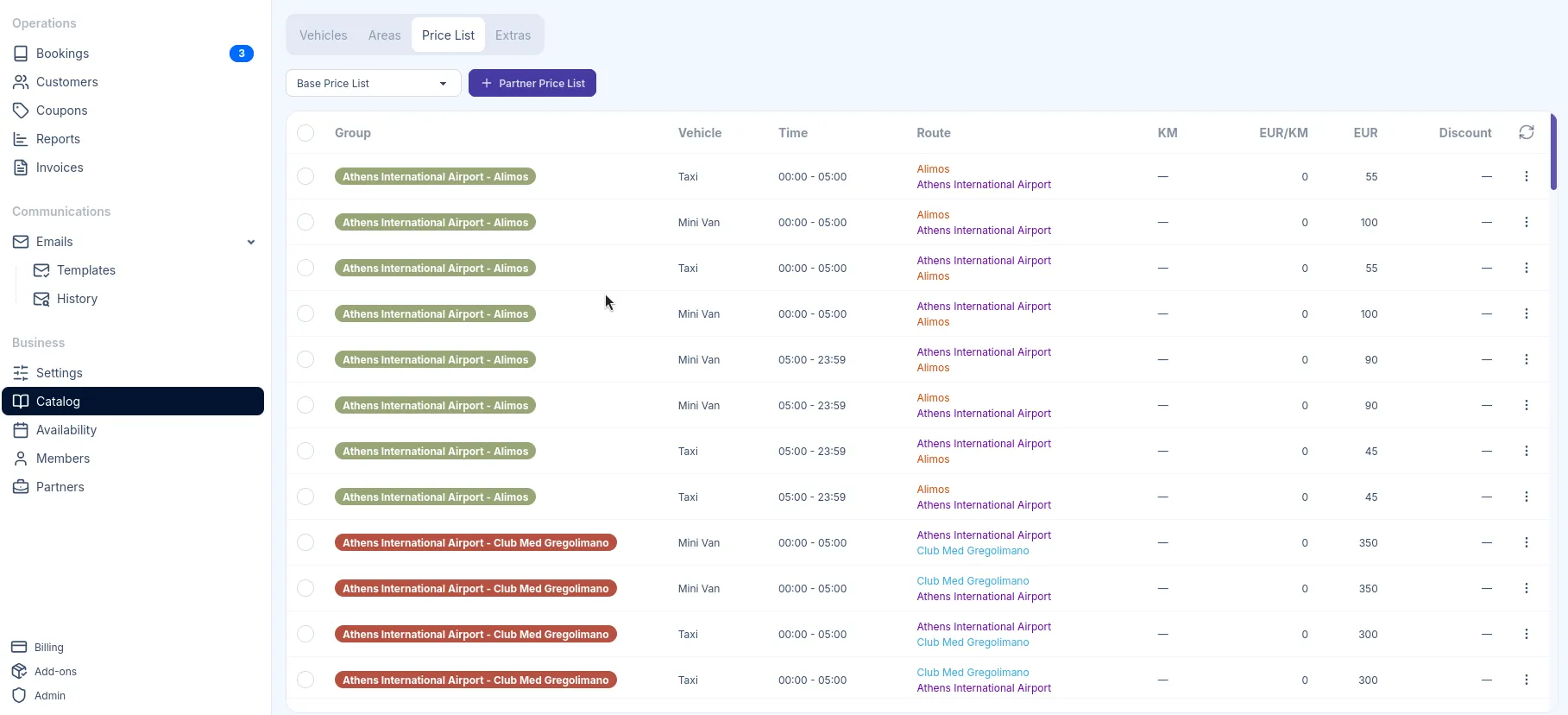
To access Price Lists, go to Catalog in the sidebar and select the Price List tab.
Price Lists define how much customers pay for transfers. TransferVista’s pricing system is highly flexible, allowing you to set prices by route, by distance (KM), by vehicle type, and by time of day. You can combine these dimensions to create sophisticated pricing rules.
Understanding Price Lists
Section titled “Understanding Price Lists”The Price List is a table of pricing rules. Each rule defines a price for a specific combination of:
| Dimension | Description |
|---|---|
| Group | A label to organize related pricing rules |
| Vehicle | Which vehicle type this price applies to |
| Time | The time range during which this price applies (e.g., 00:00 - 23:59 for all day) |
| Route (optional) | The origin and destination Areas |
| KM | Distance range for KM-based pricing (e.g., 0-10 km, 10-20 km) |
| EUR/KM | Rate per kilometer for distance-based calculations |
| EUR | Flat rate amount |
| Discount | Optional discount percentage applied to this rule |
Pricing Approaches
Section titled “Pricing Approaches”Pricing by Route with Flat Rate
Section titled “Pricing by Route with Flat Rate”Use route-based pricing when you have fixed prices between specific locations. Can be used for airport transfers or common routes to airports.
Example: Airport → City Center = €45
Pricing by Distance (KM)
Section titled “Pricing by Distance (KM)”Use distance-based pricing when prices should scale with trip length. Can be used for transfers where areas are not predefined.
Example: €2.50 per km + €10 base fee
Pricing by Route with Flat Rate + By Distance
Section titled “Pricing by Route with Flat Rate + By Distance”Use this hybrid approach when you want a base price for a route plus variable pricing based on distance. Can be used for longer transfers where distance affects cost.
Example: Athens Airport → Thessaloniki City = €50 base + €1.50/km
Adding Prices by Route
Section titled “Adding Prices by Route”-
Click New Entries in the top right corner and then Add Prices by Route
-
Fill in the pricing details:
- Group: Label for organizing rules
- Vehicle: Select the vehicle type
- From/To Time: Set the time range (e.g., 00:00 to 23:59 for all day)
- Origin and Destination: The 2 Areas defining this route
- Reverse: Check this to automatically create the return route at the same price
-
Choose a pricing type:
- Flat Rate: Enter a fixed price for this route
- KM Ranges: Set variable pricing based on distance
-
Click Add Route to add more origin/destination pairs with the same settings
-
Click Save
Using KM Ranges with Routes
Section titled “Using KM Ranges with Routes”When you select KM Ranges instead of Flat Rate, you can define tiered pricing based on the actual distance of the route:
| Field | Description |
|---|---|
| KM Start | The starting distance for this tier (e.g., 0) |
| KM End | The ending distance for this tier (e.g., 10) |
| KM Rate | Price per kilometer within this range |
| Flat Rate | Base price added to the per-km calculation |
Click Add KM Range to create multiple tiers with different rates.
Adding Prices by KM
Section titled “Adding Prices by KM”For pure distance-based pricing without specific routes:
-
Click New Entries in the top right corner
-
Select Add Prices by KM
-
Fill in the pricing details:
- Group: Optional label for organizing rules
- Vehicle: Select the vehicle type
- From/To Time: Set the time range
-
Set the distance tier:
- KM Start: Starting distance (e.g., 0)
- KM End: Ending distance (e.g., 10)
- KM Rate: Price per kilometer
- Flat Rate: Base price added to the calculation
-
Click Add prices by KM to add more distance tiers
-
Click Save
Time-Based Pricing
Section titled “Time-Based Pricing”Both pricing methods support time ranges, allowing you to charge different rates based on when the transfer occurs:
Example scenarios:
- Day rates (06:00 - 22:00): Standard pricing
- Night rates (22:00 - 06:00): Premium pricing with 20% markup
- Peak hours (07:00 - 09:00, 17:00 - 19:00): Higher rates during rush hour
Create separate pricing rules for each time period with different rates.
Bulk Actions
Section titled “Bulk Actions”You can perform bulk actions on multiple pricing rules at once. Some actions include deleting selected rules, applying discounts, or changing prices.
-
Check the boxes next to the rules you want to change
-
Click the Actions button in the toolbar
-
Select the bulk action
Filtering the Price List
Section titled “Filtering the Price List”Use the Filters button to narrow down the displayed rules.
- By vehicle type
- By time range
- By origin or destination Area
- By group
It can be helpful when bulk editing or reviewing specific segments of your pricing.
Base vs Partner Price Lists
Section titled “Base vs Partner Price Lists”TransferVista supports multiple price lists:
Base Price List
Section titled “Base Price List”The default price list that applies to all direct bookings through your booking form. This is the standard pricing for customers booking directly with your company.
Partner Price Lists
Section titled “Partner Price Lists”You can create separate price lists for Booking Partners who book transfers on behalf of their customers. Partner price lists allow you to:
- Offer wholesale or discounted rates to partners
- Set different pricing structures for different business relationships
- Maintain separate pricing from your public rates
To create a partner price list, click Partner Price List next to the price list dropdown. This will copy the current base price list, which you can then modify for that partner.
Vehicle Visibility on Booking Form
Section titled “Vehicle Visibility on Booking Form”This behavior ensures customers only see vehicles with valid pricing for their specific transfer request. If a vehicle isn’t appearing on your booking form:
- Check that pricing rules exist for that vehicle
- Verify the time range covers the customer’s pickup time
- Confirm the route (origin and destination Areas) is covered
- For KM-based pricing, ensure the distance falls within a defined range
Pricing Examples
Section titled “Pricing Examples”Below are some common pricing scenarios you can implement using TransferVista’s pricing system.
Flat Rate Airport Transfers
Section titled “Flat Rate Airport Transfers”| Vehicle | Time | Route | EUR |
|---|---|---|---|
| Sedan | 00:00 - 23:59 | Airport → City | €45 |
| Sedan | 00:00 - 23:59 | City → Airport | €45 |
| Van | 00:00 - 23:59 | Airport → City | €65 |
| Van | 00:00 - 23:59 | City → Airport | €65 |
Day/Night Rate Differential
Section titled “Day/Night Rate Differential”| Vehicle | Time | Route | EUR |
|---|---|---|---|
| Sedan | 06:00 - 22:00 | Airport → City | €45 |
| Sedan | 22:00 - 06:00 | Airport → City | €55 |
Distance-Based Pricing
Section titled “Distance-Based Pricing”| Vehicle | Time | KM | EUR/KM | EUR (base) |
|---|---|---|---|---|
| Taxi | 00:00 - 23:59 | 0-100 | €1.50 | €5 |
A 25 km trip would cost: €5 base + (25 × €1.50) = €42.50
Tiered Distance Pricing
Section titled “Tiered Distance Pricing”| Vehicle | Time | KM | EUR/KM | EUR (base) |
|---|---|---|---|---|
| Sedan | 00:00 - 23:59 | 0-20 | €2.00 | €10 |
| Sedan | 00:00 - 23:59 | 20-50 | €1.50 | €50 |
| Sedan | 00:00 - 23:59 | 50-100 | €1.00 | €95 |
Examples
- 15 km trip: €10 + (15 × €2.00) = €40
- 35 km trip: €50 + (35 × €1.50) = €102.50
- 75 km trip: €95 + (75 × €1.00) = €170
Organizing with Groups
Section titled “Organizing with Groups”Use the Group field to organize related pricing rules:
- “Sedan Day” for standard daytime rates
- “Night Premium” for after-hours pricing
Groups help you quickly identify and filter related rules.
Route Coverage
Section titled “Route Coverage”Ensure you have pricing rules for both directions of common routes. Use the Reverse checkbox when creating route-based pricing to automatically create both directions.
Testing Your Pricing
Section titled “Testing Your Pricing”After setting up pricing rules, test your booking form:
- Select different pickup and drop-off locations
- Try various times throughout the day
- Verify all vehicles appear when expected
- Check that displayed prices match your rules