Viewing Assignments
Esta página aún no está disponible en tu idioma.
Drivers see their assignments on the Dashboard under Transfers, Tours, and Previous Assignments. Tapping or clicking an assignment opens the full transfer details.
Assignments list (Dashboard)
Section titled “Assignments list (Dashboard)”Assignments are grouped by time: Transfers shows current and upcoming assignments (today and future); Previous Assignments shows completed transfers (past). Tours shows current tour assignments when applicable.
On the Dashboard, each assignment in Transfers and Previous Assignments shows at a glance:
- Booking reference (e.g. TRF71) and status (e.g. Assigned, Completed)
- Customer name
- Pickup location
- Pickup date and time
- Flight or ferry (when provided for airport/port pickups)
Drivers tap or click a row to open the full details.
Assignment detail view
Section titled “Assignment detail view”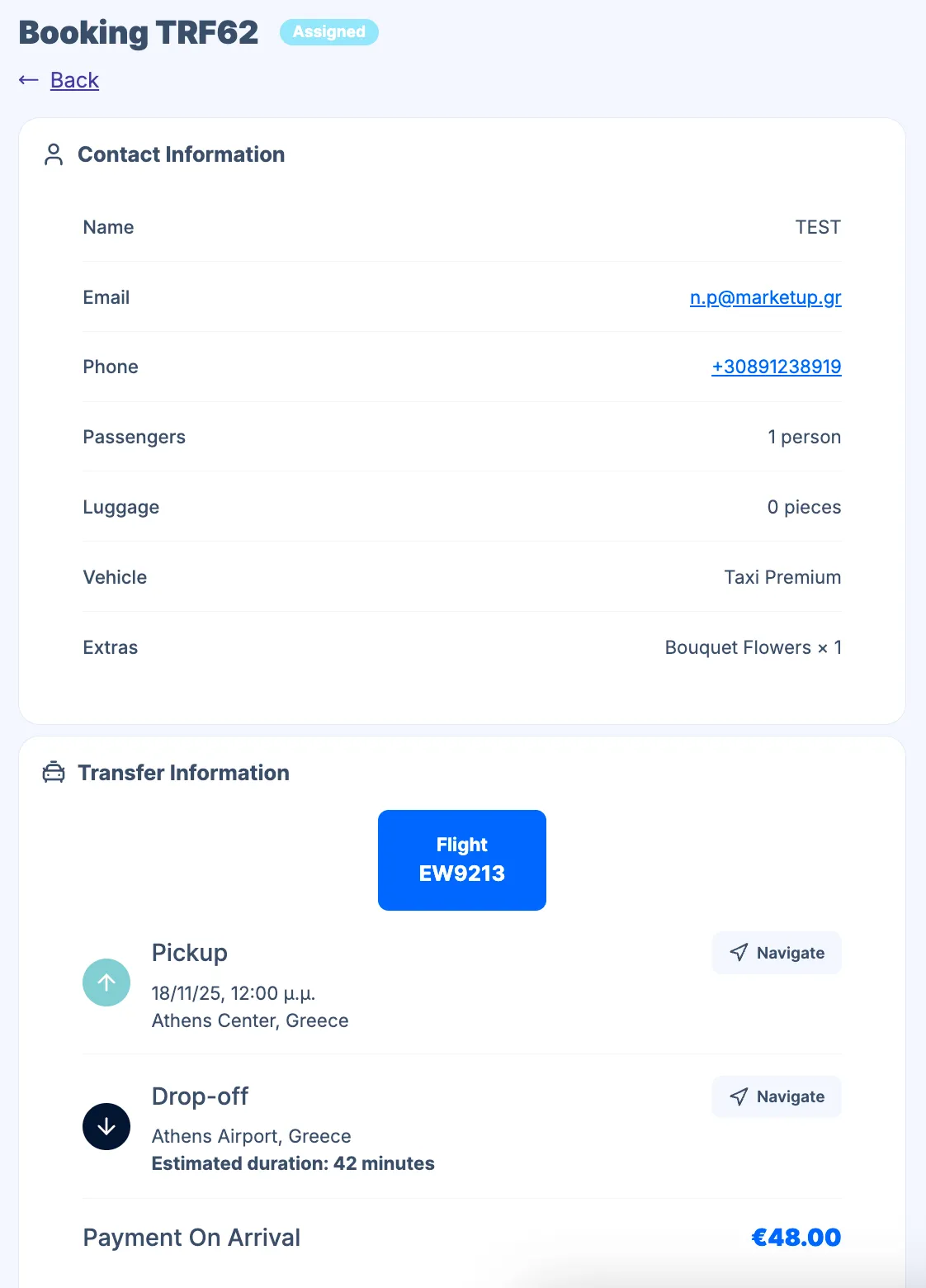
When drivers open an assignment, they see:
- Contact Information – Customer name, email, phone, number of passengers and luggage, vehicle assigned, extras (if any)
- Transfer Information – Pickup date and time, pickup address, drop-off address, estimated duration. Each location has a Navigate link that opens the route in Google Maps so drivers can plan the journey and navigate.
- Customer Notes – Special instructions or notes (or “No notes provided” when empty)
- Payment – When your Permissions allow it, drivers see the payment method and amount (e.g. Payment on Arrival €687.60). Otherwise this is hidden.
- Actions – Buttons to update status: Picked Up (when they collect the customer) and Completed (when they drop off). See Managing Bookings.
Drivers can also open Voucher from this screen.
Viewing the route
Section titled “Viewing the route”Use the Navigate links next to the pickup and drop-off addresses to open the route in Google Maps. Drivers can start turn-by-turn navigation from there.
Price and commission visibility
Section titled “Price and commission visibility”Whether drivers see the booking price or their commission depends on your Permissions settings. You can hide these so drivers only see operational details.
Related pages
Section titled “Related pages”- Driver Experience Overview
- Managing Bookings - Updating status (Picked up, Completed)