Bookings Overview
Esta página aún no está disponible en tu idioma.
Introduction
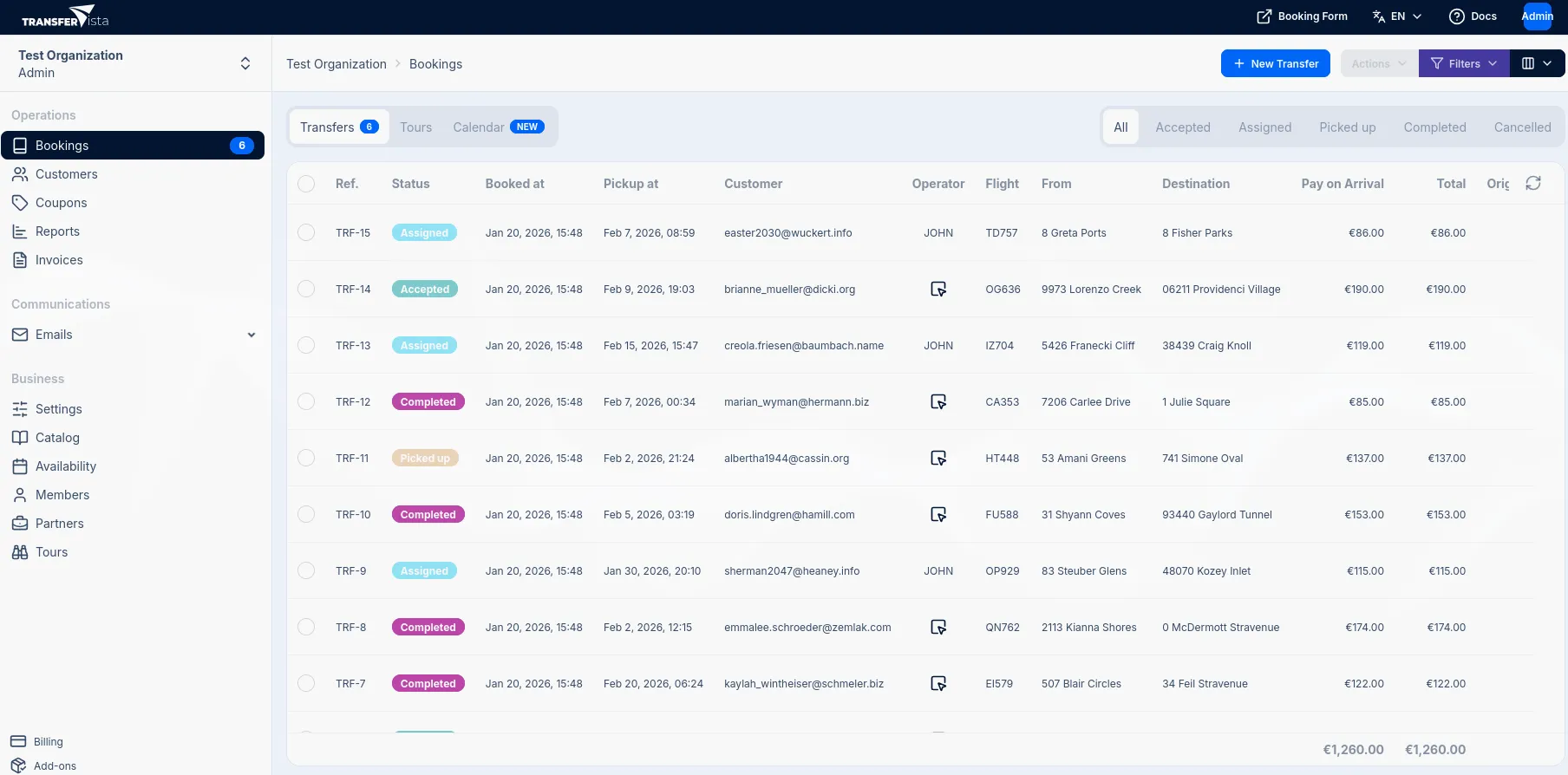
Section titled “Introduction”The Bookings page is your central hub for managing all your bookings. From here, you can view, filter, sort, and take action on bookings.
To access the Bookings page, click Bookings in the sidebar under the Operations section.
The Bookings page has three main tabs:
| Tab | Description |
|---|---|
| Transfers | View and manage transfer bookings |
| Tours Add-on | View and manage tour bookings |
| Calendar | Visual calendar view of all bookings by date and time |
A badge on the Transfers tab shows the count of active (non-completed, non-cancelled) bookings.
Bookings Table
Section titled “Bookings Table”The bookings table displays all bookings in a table format. Some important columns are:
| Column | Description |
|---|---|
| Ref. | The booking reference number |
| Status | Current booking status |
| Booked at | Date and time when the booking was created |
| Pickup at | Scheduled pickup date and time |
| Customer | Customer email address |
| Operator | Assigned driver/operator, or an Assign button if unassigned |
| Flight | Flight number (with integrated flight tracking) |
| Ferry | Ferry details (when applicable) |
| Pay on Arrival | Amount to be collected from the customer |
| Total | Total booking amount |
| Origin | Where the booking came from (Website, Partner name, etc.) |
Status Filters
Section titled “Status Filters”Use the status filter buttons to quickly filter bookings by their current status:
| Status | Description |
|---|---|
| All | Show all bookings regardless of status |
| Accepted | Bookings that have been received but not yet assigned to a driver |
| Assigned | Bookings with an assigned driver, awaiting pickup |
| Picked up | Transfers currently in progress (customer has been collected) |
| Completed | Successfully completed transfers |
| Cancelled | Cancelled bookings |
Advanced Filters
Section titled “Advanced Filters”For more detailed filtering, click the Filters button in the toolbar. You can add multiple filter conditions. Click + Add filter to add filter conditions, then click Apply filters to update the table.
Column Visibility
Section titled “Column Visibility”Click the Toggle columns button to show or hide specific columns. This is useful for focusing on the information most relevant to your workflow.
All columns are shown by default. Click a column name to toggle its visibility.
Bulk Actions
Section titled “Bulk Actions”Select multiple bookings using the checkboxes, then use the Actions dropdown to perform bulk operations on selected bookings.
Creating New Bookings
Section titled “Creating New Bookings”Click the New Transfer button in the top-right corner to manually create a new transfer booking. For tours, switch to the Tours tab and click New Tour.
Related Pages
Section titled “Related Pages”- Assigning Operators - Learn about driver assignment
- Calendar View - Navigate bookings visually
- Status Workflow - Understand booking lifecycle
- Payments - Payment methods, deposits, and tracking