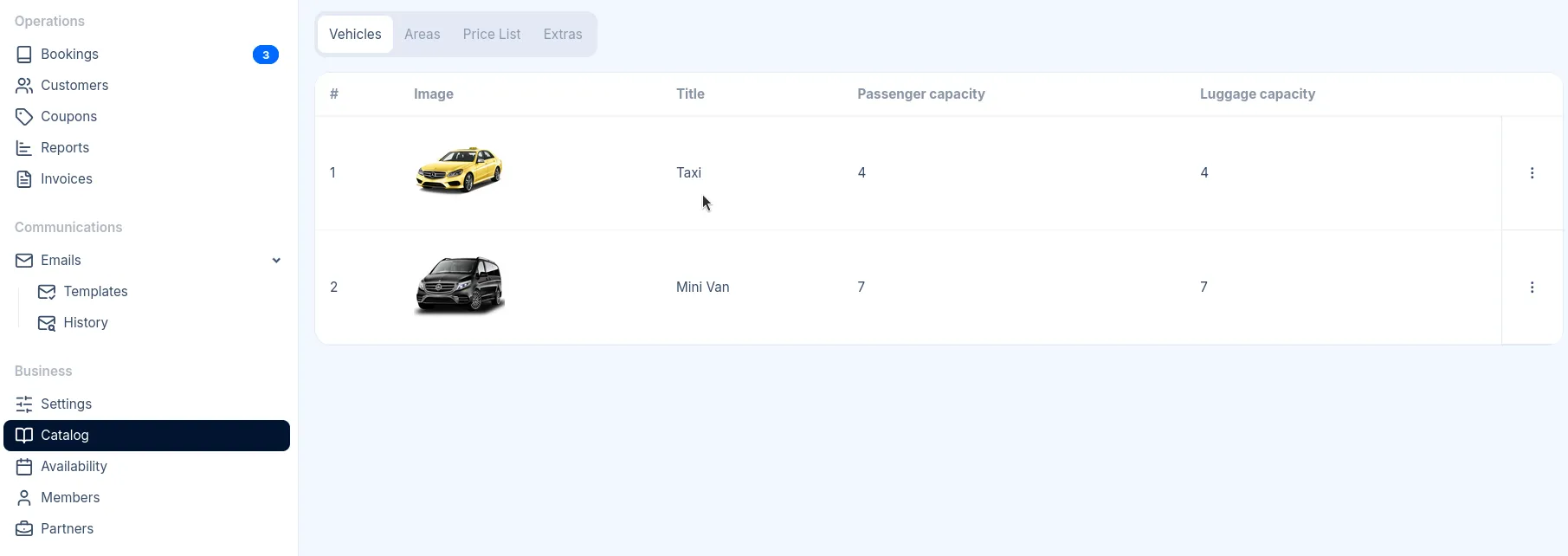
Vehicles
To access Vehicles, go to Catalog in the sidebar.
Vehicles represent the categories of transport you offer to customers. They are directly related to pricing.
Adding a New Vehicle
Section titled “Adding a New Vehicle”-
Click New Vehicle in the top right corner
-
Fill in the vehicle details (see Reference below)
-
Click Save
The vehicle will immediately appear in your list. You should configure pricing for the vehicle next.
Reference
Section titled “Reference”| Field | Description |
|---|---|
| Title | The vehicle name displayed to customers (e.g., “Standard Sedan”, “Luxury Van”, “Minibus”). |
| Image | A photo of the vehicle. Drag and drop an image or click to browse. Maximum file size: 8MB. |
| Description | Optional details about the vehicle shown to customers. Supports rich text formatting (bold, italic, lists, links). Maximum 2000 characters. |
| Passenger capacity | Maximum number of passengers the vehicle can accommodate. Customers cannot select this vehicle if their party size exceeds this number. |
| Luggage capacity | Maximum number of luggage pieces the vehicle can carry. Helps customers choose an appropriate vehicle for their luggage needs. |
Vehicle Images
Section titled “Vehicle Images”- Use high-quality photos that clearly show the vehicle
- Consistent image styles across your fleet create a professional appearance
Naming Vehicles
Section titled “Naming Vehicles”Choose clear, descriptive names that help customers understand what to expect:
- Good: “Standard Sedan”, “Minivan”, “Mercedes S-Class”
- Avoid: “Car 1”, “Vehicle A”, “8-seat Minivan”, or overly technical names
Capacity Settings
Section titled “Capacity Settings”Set capacities based on comfortable travel with luggage. Vehicles are disabled for selection if the customer’s party size or luggage exceeds the set limits.